All guides
Install OneTake on Windows — past every warning
OneTake's builds aren't code-signed yet (certificates are a paid, ongoing cost we take on after the early-bird round), so Windows shows a few scary-looking but standard prompts on the way in. Here is every click, with real screenshots, and what each warning actually means.
8 steps · about 3 min
01
Download your build
Sign in and grab the Windows installer (
OneTake-Setup-x.y.z.exe) from the download page. Downloading requires an active license — buy first if you haven’t.02
Edge flags the download
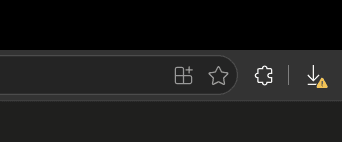
As the download finishes, the downloads icon in the toolbar picks up a small warning badge. Nothing has been blocked — Edge is just asking you to confirm. Click the downloads icon.
03
Find the "isn't commonly downloaded" notice
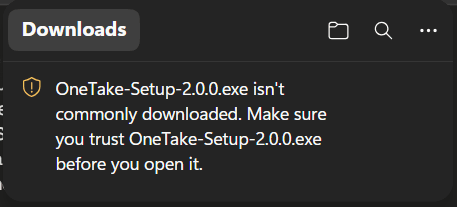
The downloads panel shows "OneTake-Setup-2.0.0.exe isn't commonly downloaded. Make sure you trust OneTake-Setup-2.0.0.exe before you open it." This is Edge's reputation check: it appears for any new, unsigned executable that few people have downloaded yet — exactly the situation for a young indie app.
04
Open the ⋯ menu and choose Keep
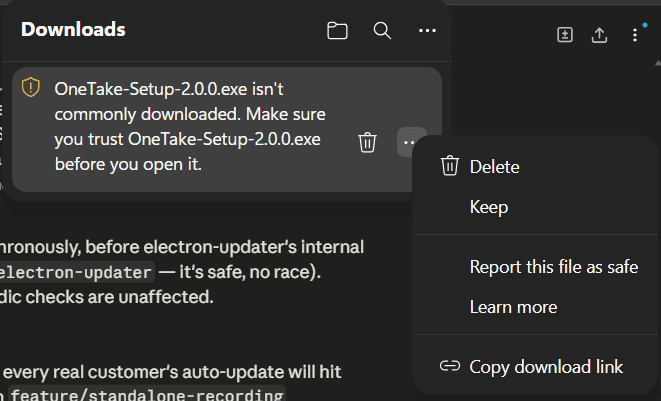
Hover the flagged download, click the three-dots (⋯) menu on it, and pick Keep.
05
Edge asks once more — open the Delete dropdown
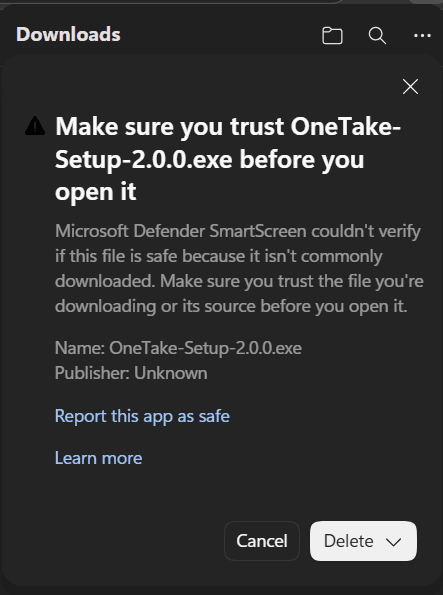
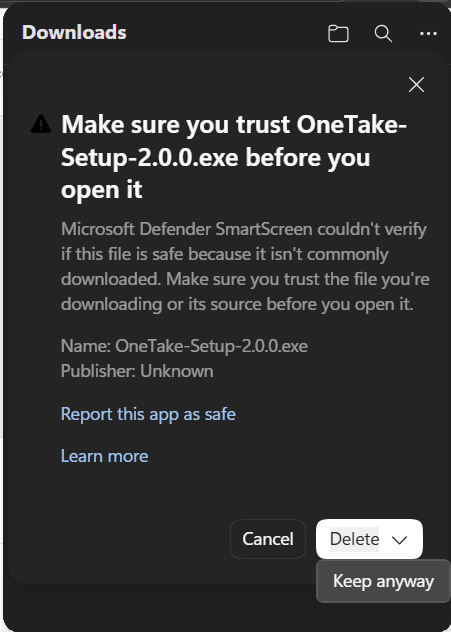
A "Make sure you trust OneTake-Setup before you open it" panel appears, quoting Microsoft Defender SmartScreen and showing "Publisher: Unknown" (that is what unsigned means). The Keep option hides behind the dropdown arrow on the Delete button — click that arrow.
06
Choose "Keep anyway"
Pick Keep anyway from the dropdown. The installer is now saved in your Downloads folder for real.
07
Run it — and click "More info → Run anyway" if SmartScreen appears
Double-click the installer. If a blue Microsoft Defender SmartScreen window appears (“Windows protected your PC”), click More info, then Run anyway. The installer then runs like any other Windows setup.
08
Sign in and record
Launch OneTake, sign in with the account you bought with, and you’re ready — connect your OBS with the two-minute WebSocket guide and record your first take.
Why all these warnings?
Windows shows them for any executable that isn’t code-signed with a paid certificate and doesn’t yet have download volume. It says nothing about what the file does — only that Microsoft hasn’t seen it often and no certificate names the publisher. The build you download is the same file linked from your account, served over HTTPS. Code-signing (which removes these prompts) is high on the list once early-bird sales land — the install guide covers macOS and Linux equivalents.
Not bought yet? Try the whole app first
The live demo on the homepage is the real interface — walk the entire workflow in your browser before any download or warning exists.